Tuesday, 6 May 2014

More CG retro goodness...

In our 3rd year 3D diploma, our students first assessment is to create a realistic rendered scene from photographic reference.  They've just been learning Mari, ZBrush, Renderman and Nuke - all tools that they utilise to produce the final image itself.

As always, I tend to find that there's not a lot of things I can do when these roll around.  The 3rd year is very self-directed, and by this level they should be very competent with their tools and require just a little guidance creatively now and again.  So - with my mid-life crisis still burning away at my soul, I decided to just do my own mini project with the inspiration again coming from my obsession for the 80's computer era.

Recent Acquisitions

If you saw my other post, I recently refurbished a C64 breadbin case.  I'd taken a few photos for that blog post, and I figured I'd use one as reference to create a small scene.  I was also inspired by other things around me, but more about that as we go...

Starting with something simple as reference

Getting started

Obviously the first rule is to not do more then you need to when working on a project.  For the C64, I created the visible corner rather then the whole machine in this case (no pun intended).  There were some background elements - a screw driver, a tablecloth and flat white paper.  I figured that I may toy with these a little and take some artistic license...


The screwdriver luckily was pretty simple.  I modeled the attachment for the end, but only the main shape rather then indent the head detail.  I expect this detail to be out of focus anyway, so there was no need to produce a high detail model.


Materials and textures

Textures in Maya aren't hard, but things such as the procedural textures Maya offers I've never been a big fan of - and I wanted to make use of a fine fractal to generate the molded plastic.  Maya just doesn't make it easy to achieve this quickly, creating odd skewing and weird mapping issues...

So I resorted to the approach of 'best tool for the job'.  One of the students also needed a fractal texture to apply to the bump of a plastic case as well...  Using Lightwave's 'texture image filter' plugin, I created large 8k images of small, clean fractal noise that we could use to add textured detail to the plastic.

I was inspired by work going on around my desk in the office, where air-con repair created a lot of plaster dust as ceiling tiles were moved...  That meant I also needed some dust along edges of the case grooves, and some more fractal variations for breaking up the surfacing subtly...  Using Lightwave's Surface baking camera and the UV map I'd generated, I baked out a few more textures I could use in Photoshop to paint up other maps.

Put a model in the oven, bake on high for 30 seconds...

Crud...

Another detail I wanted to add to my dusty concept was of course larger particulate matter.  Again, I made use of Lightwave's vertex based particle emitter to spray and randomly spread particles into grooves, edges of the case for placement of 'solids'.  Baking the final frame out to an object layer, I then used them to randomly clone a 'plaster particle' with variations onto each vertex.


When bought back into Maya, these aligned perfectly.

But what of that background?

I had a piece of black art-board sitting on my desk that was collecting dust from all the dust being generated...  That gave me the idea to use the board as part of my background...  Plus a bonus was that with a little wiping and shaking, I could slap the real art-board on a scanner to pull off realistic textures that I also used to add plaster streaks to the computers case as well.

A few small screws that I modeled and placed on this board added to the story behind the image.  The screws are perhaps a little higher detailed then they needed to be, but they were relatively quick to create (for this I used LightWave and its very useful lathe tool to create the thread)

Completely screwed...

The tablecloth - also using Lightwave (its nice to be able to work around multiple applications) - I created a cloth simulation for a subdivided mesh, then pushed the board geometry on it to wrinkle the cloth close to the edges of the board.  That I also baked out as a mesh for modification

I took that into ZBrush for touching up, and then textured it with 2 layered renderman shaders to simulate the tablecloth which had a shinier threaded pattern through it. I drove the mix of the two materials through a tiling damask pattern.

Setting up some of the background details

Finishing off

As I had done previously with the C64 dust particles, I repeated the same process with the cloth and art-board to add more details...

Background dusted up and ready for render

The same dusty smeared textures from the art-board I also threw onto the table cloth and C64 case to detail it more, then a quick adjustment of camera angles, some very simple lighting (primarily a large area light and a simple HDR environment) and DOF produced the finished image

Done and dusted as they say... Eh, I mean dusty

To be honest, I'm not 100% happy with it - it could do with work with the lighting - but its a project I enjoyed working through.  The benefits of doing something like this presents the occasional challenge, and its those challenges that encourage more learning of the tools and technology.

Wednesday, 19 March 2014

Front projection - Maya, Nuke and free scripts

I'm again back teaching Nuke to students.  Nuke 8 has some great features - in particular, I'm now officially a big fan of the colour wheels and scopes for working with grading...  But enough about that...
Thanks to one of my students last year, I became aware of a great free Python script called Maya2Nuke.  It lets you set up your scene in Maya and then export it, along with animation information across to Nuke.  And it does it extremely well I might add, but not without a little massaging to get there...


I figured a general overview of what this is all about wouldn't hurt here.  Some of you may recognise the character above as being the police officer that stops a young James Kirk in the first JJ Abrams Star Trek movie.  Note that he didn't originally have a flare in his eye, but more about that later.  Its a frame that I sourced from here to use as a personal learning project.  No copyright breach intended (it was used for educational purposes)


Whats up, doc?

I'm running Maya 2014.  I follow the instructions for the script which says to place it in the user's Maya scripts folder.  It then says to import it into Maya from the command line...  But it just comes up and can't see anything in Maya.  Secondly, it also generates an error trying to retrieve frame numbers.  In Maya 2014, these are returned as floats (allowing for fractional frames).  The original script tries to treat these as integers, so a small tweak is needed to make the code work.

Open up the Python script in a script editor (Maya, Notepad++, etc).  Scroll down a few lines (line 29-ish), and there you'll see two lines retrieving start and end frames for the scene into two variables 'min' and 'max'.  Its a very simple fix - just typecast these to be integers.


Secondly, once the script is loaded into the script editor, it can just be run from here and performs as you'd expect.  However, saving it to the shelf in Maya will just save all that hassle.  Its now ready to go.


Front Projection - the what, why and how

Front projection mapping is all about creating the illusion of creating 3D motion from a flat 2D image.  It does this by projecting the image as seen through the camera onto the geometry in front of it.  Usually you can fake the illusion without front projection through a 2.5D approach using cards or planes with 'slices' of our scenery applied and placed different distances from our camera...

But while this may work just fine for distant elements (and it is quite common for cityscapes, etc), for closer details, the fact we are using cards starts to break the illusion as we notice the lack of perspective when moving in or around the scene.  Things just look like, well, flat images on cards.

To give our artwork real "depth", we can project the image onto very rough 3D geometry that represents the form of the artwork itself.  For example, rock formations with insets and outcrops and buildings that are close by...


Rough you say?

The idea of front projection is to make an image appear to have perspective.  This means we're really more concerned with an image appearing to change, and not worried about lighting and rendering artefacts common from rendering low-poly models.  For the Star Trek project, I went for a collection of primitive shapes with a little modification here and there.


However, for say a shot of a sky scraper in downtown Los Angeles, simple boxes and a few small extrudes are all that's needed.  Here's a very simple example of one that I did earlier as a test.

K.I.S.S - basic geo just gives our image some depth

We can get away with fairly low detailed geometry - though high detail may be used in circumstances where intricate details need to have some geometric form.


How do we do it

The approach I use is to simply load up the plate as a background plane in Maya's perspective viewport.  Before I proceed, I'll make sure that this fits properly (I've been caught before by not doing this step).

  1. Change the render size to the same dimensions as the picture.
  2. Make sure we've set the viewport to display the resolution gate (its the small blue ball icon in the VP's status bar).  You may need to adjust the Camera attributes - Fit Resolution Gate to a vertical or horizontal option if you can't see the whole image in the viewport.
  3. Open up the image plane attributes, and make sure that you click the Fit to camera resolution gate option to fit it properly.
  4. If you don't, you can end up with the image plane not filling the background and the alignment of your scene won't work correctly.


I adjust the camera so that the grid loosely (you don't need to be perfect here - though it can make life a little easier) looks about right and then break up the image into elements that represent the main forms I will see potentially changing with any camera movement.

Model and place the basic forms in the viewport to match the picture.  For shapes like faces, or rocky cliffs, you can generate a simple plane or box with multiple faces, and push/pull them to create the basic form as seen from the camera.  For the background sky, I'll often generate a very large sphere and cut away the faces to leave a slightly curved background object.

Make sure that you approximate the distances from the camera that the elements sit, align/resize/etc until they look right and you're set.  Don't worry if some of the geometry spills outside the camera's resolution gate.


If you want to see your front projection directly in Maya, you just have to wire in the surface colour using a Utility node (rather then a file node).  The Utility node is called, oddly enough, Projection.  Setting its Proj type to Perspective, adding an image and setting the camera options (Our camera with Resolution Gate being the setting) we can see the result as per the render above.

While you don't need to surface the objects at all for Nuke, there are times where you may want to render directly from Maya rather then go the whole compositing path...


Prepping up the images

Once I have the objects in place and everything looking clean and aligned, I'll break up the original image into multiple layers and paint out details as the elements go backwards...  The reason here is simply to make sure if the camera movement starts to reveal what is behind things, we don't want to see that the same picture of the items appear on the background elements...

Below is a quick example - I painted into the edges of the house on a layer I was using as a background plate.  This meant that the foreground building geometry didn't get any doubled-image issues.  Of course, you could also just do a complete sky replace with a separate BG image as well if you wanted to.


Ready to roll...

At this stage, we're ready to just export the scene to Nuke.

Run the Maya2Nuke script explained at the start of this article.
Select the items you want to export from the list.  If you can't see all items in your scene, look in the Type menu and click the All checkbox.
The Animation menu lets you also process and export animated items.
Under Edit, click the Calculate Maya data - it'll process animated frames, etc.
Then at the very bottom of the window, click the big Generator button.

If it worked out, you'll get a message saying so!


Putting it in NukeX

Just open up Nuke,  then click in the Node Graph and paste.  The project's nodes should appear, ready to be used.  The overall structure is very simple...  Our 3D objects (exported by Maya2Nuke as OBJ files) connected into a scene, and then that connected to a scanline render set to use the camera we exported from Maya.  A simple example below shows the basic structure of that sky scraper scene.


Simple 3D node set up - just add textures and cook.

You'll spot that the nodes are named to match the items in the Maya scene.  Unlike my quick examples, you should ideally make sure to give all of your items proper names that make sense.  To be honest, this should be a general practise so you can manage your projects efficiently in any CG application.

Something else to be VERY aware of is that if you use objects without renaming them for a project, OBJ's generated from Maya2Nuke will just overwrite any existing files.  I ran into this headache when a fairly complex example I'd created suddenly broke badly.  Lucky I just re-exported the Maya scene to overwrite the overwritten files again.

The only thing left to do in Nuke is add a few read nodes to get our images, attach these to Project3D nodes driven by the camera node.  And then attach them into the objects.  To animate your shot, you will need to get a second camera node - do not animate the one from Maya directly as this one is used to project the imagery onto the 3D geometry itself.

Oooh!  Look - a lens flare!


To this scene I separated the background and character into two scanline renders.  The reason for this was so I could grade and manipulate these two elements separately if I wished.  I also threw in an anamorphic flare streak I rendered from LightWave3D to add some animated detail to the eye of the character.  Here is a full image of the finished Node graph.  I've splattered a good collection of notes through it to hopefully explain what does what...
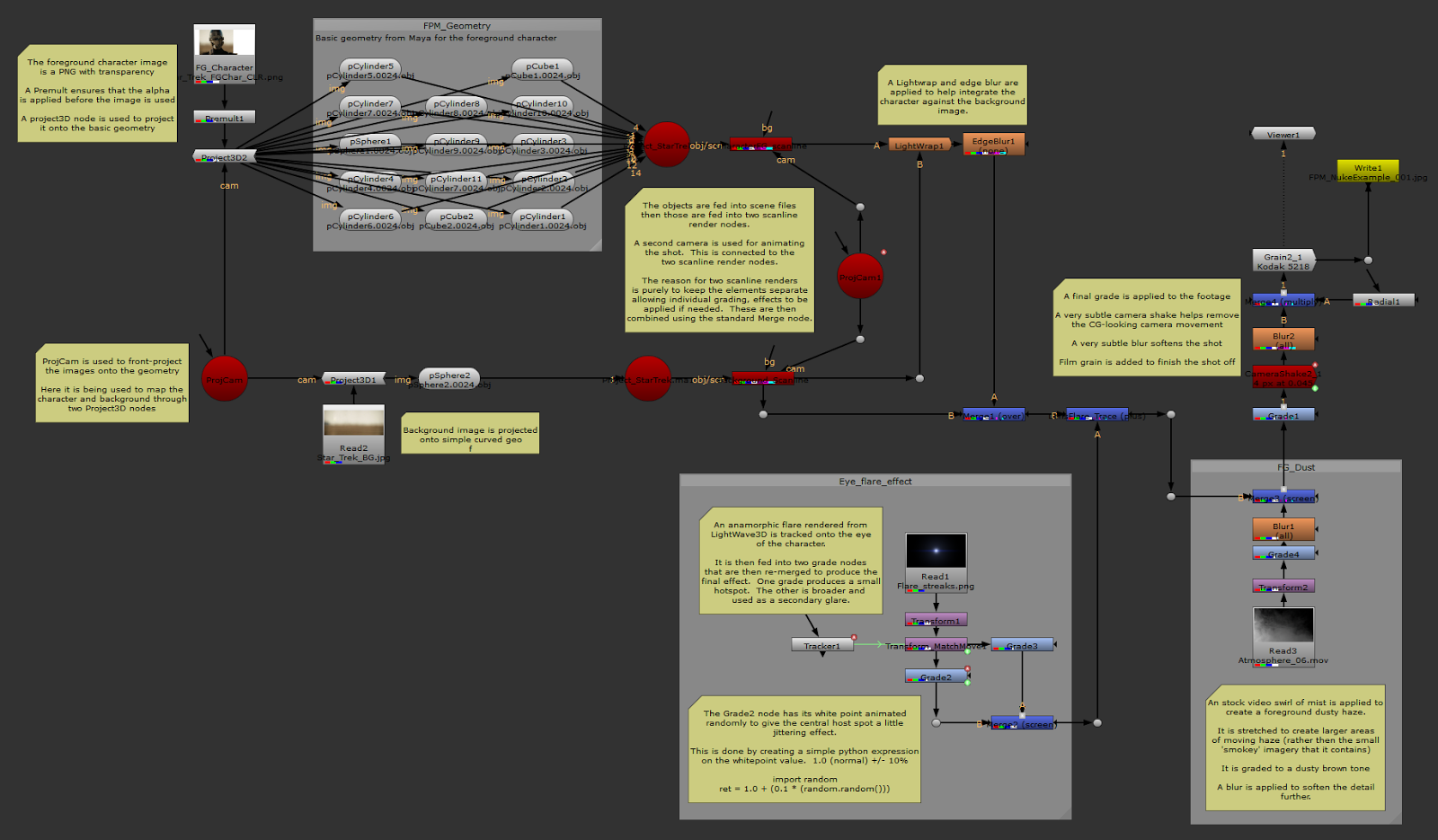
Notes, notes and more notes...

I didn't really have much of a story behind this scene (it was a mere exercise as a way to test Maya2Nuke, and to prep up for class with an interesting example of front projection), so there's nothing overly exciting going on other then the eye and a slow camera pan (which shows off the perspective effect nicely)


So there you have it - a fairly long-winded explanation and overview of front projection mapping between Maya and Nuke.  Its a load of fun, and lets you quickly create moving backdrops and elements from matte paintings, photo's and images.

Its well worth learning to do - front projection is something that's used throughout many a visual effects shot...  Hope that this article has been of interest to someone out there on the Interweb...

Friday, 7 March 2014

TECH : Broken doesn't mean it can't be pretty...

Recently a local retro collector was giving away some of his excess gear - in his collection, he had an old Commodore 64 that was dead. It had been gutted - all of its chips had been removed and someone had soldered in a few random wires - and it was missing a few keys which had broken off.  While only my brother had Commodore (I was the "Sinclair" side of the family), the old "bread box" styling of the machine is iconic.  I also felt even if it didn't work, it could make for a nice display unit.

Not one - but two - but inside none...


On a little googling, I also saw a few small projects with Raspberry Pi emulators, old keyboards and a device called a Keyrah.  It is a small PCB that converts the Commodore keyboard input into a USB compliant USB keyboard.  I figure if I get the time, I may consider looking into projects like this at a later date.

Inspection - yup, its missing a few keys.

The machines arrived well packed inside an old Banana box.  I'd been sent two (I only expected one) - the Commodore 64, and a Commodore 64c that apparently would only produce a black screen and was rather messy inside as well.  The Commodore 64c's keyboard, however was intact.

Yes - I suspect that there may be something missing here

I'm not a big fan of the newer model casing that Commodore started to release its machines in (the later C128, Amiga 500's, etc).  While I could have just transplanted the keyboard across to the older box, its keys are light and the old bread box has great looking dark brown keys.  To keep the retro appeal, I just needed to replace those 3 that were missing with brown keys.

Washing away the dust

These machines have obviously been stored somewhere dusty - covered in grime and dust bunnies (or as they are otherwise known - clumped dust and hair) - a quick wash in some warm soapy water did wonders for the cases.  Obviously - I removed the keyboards and PCB's first!


So it was off to eBay...

I found a reseller who had classic brown C64 keys (refurbished, but in very good condition).  He also had pegs (the things that had snapped on the old keyboard, hence the missing keys) as well as springs.  So I ordered the 3 keys I was missing, a pack of springs and stems.

3 missing keys - now found (on eBay).  US$3.99 each


They arrived around a week later.  So - a little unscrewing (the keyboard PCB has almost 16-20 tiny screws hold it on) and some prying later, I managed to get the pegs in place, sit the springs on top and clip down the keys.

So many screws!


Viole!  Now looks much nicer.

Ta-da!  Now almost complete...


But something was still missing...


The C64 was missing its power LED.  This is a cheap 5mm Red LED - around $0.25 NZ cents.  I bought a couple (along with a green and a yellow one - Just because I could round it up to $1.00 - and because I thought its always handy to have some on hand)


At first I thought I would just clip it into the small black mount - it fits great - but then the clip is way too wide to go back into the case.


I placed the clip back in, inserted the LED and carefully (but forcefully) pushed it in with a pair or needle-nosed pliers.  The "click" meant it was in, and the case now looks complete.


Still one last detail... But for now...

There is still a missing black plastic cover that sits over the joystick and power connectors on the side, but from what I can tell this is really just a piece of black plastic with holes carefully punched into it.  Something for another time...

Something for another rainy day

Ready for display... or...

The case looks great (as long as I don't stare at the joystick connector "space" in the side) - its a classic design, and along with the ZX Spectrums (all 6 of them - lol!), the Atari 600 and the C64c - I now feel I need a display space.

I am definitely keen to make these two C64's at least do something more then sit pretty.  At a later date, I'll try my hand at throwing in a Keyrah interface.  If I'm feeling ambitious enough, a Raspberry Pi project may also be on the horizon...


UPDATE (April 2014)

Thanks to Terry 'tezza' Stewart, I now have that elusive plate.  It was definitely a lot different then I had imagined it to be (wasn't quite as simple as a 'plastic with holes')... A metal plate, with a large base folded flat to sit underneath the Circuit board.  However, that aside - I can now officially say that the case is complete...

Woohoo!  Nuff said...

Saturday, 25 January 2014

Inspiration : Art books from three favorite productions

Figurines are a great inspiration (as I've said back on this blog entry), but something that is even more inspiring for me is the many art books I have here. Looking at concept art, model sheets and reading those stories that remind me why I love CG - its what keeps me driven and passionate.

In the last couple of months, I've gotten 3 - Pacific Rim : Mans, Machines and Monsters , Elysium : the art of the film and just recently Transformers : the art of Prime.

I felt a quick personal review would be a nice entry for the blog, and for those interested in these books. I like all three, but for those who were thinking about it - here's my personal take on each...

Pacific Rim : Man, Machine and Monsters


This is a nice book - its fairly large, and what's great is that it comes with a dust cover. Its an interesting browse. Inside is a little odd in that there are a lot of small pieces of artwork on removeable sheets spread across the pages.
Small removable sheets (like the one on the left) are spread throughout


I'm not sure if I should remove these (they are attached with easy-to-remove gum) or leave them. They sit over page artwork, and while I'm tempted to take them out - I'm also not sure where they would be stored (ie. to keep them with the book).

Great artwork, but those removable sheets (that blueprint) can get in the way.

Visual Effects and Special effects have various storyboards. But could do with more imho.

As expected, plenty of detail sketches and coloured artwork

Overall, this book is well written, and its got plenty of artwork and concept material. To be honest, as much as I like this book, I do feel it could do with more art and design sketches. Many of the photo's and imagery I've seen on the special features of the Bluray, or online.

However, its still a good look at the movie itself along with its production and design work.  I loved this movie, just for watching all that cool ass-kicking visual eye candy - its not a film I'd watch if I was after a meaningful and complex story however... lol!

Art of Elysium


This is a fairly wide book. Its a little awkward to browse through when sitting on my lap, but its a book that's well worth the cost if you're into the grungy design that Weta and Neill Blompkamp have bought to the cinema screen.

This book is very reminiscent of the District 9 art book I got a couple of years back at the Weta stand at a local NZ convention. Like that book, this one also features lots and lots of nice artwork, breaking the production right down to the small details such as the tattoo designs that the characters wore.

Right down to tattoo's, costumes and more - the books got plenty of great info...

Overall, as I said, there's a lot of great material in here. A mix of written material, with a good dose of conceptual artwork and sketches, as well as photo's.

As you'd expect - weapons and ships feature throughout.

The many, many sketches and paintings really show the amount of design that went on.

I'm a fan of both of Neill's films. I love the style, the stories and the gritty nature of the films themselves - Seeing the artwork and reading about the process just increases my respect for the amount of work that went into these productions...  Great stuff...

Transformers : The art of Prime


I'm a big fan of this animated show - and the book as well - its loaded with detailed images of characters, set designs, matte paintings and all the eye candy any self-respecting fan just has to see.

The overall dimensions (12.6 x 9.6 x 0.7 inches) make it a nice size that sits on your lap nicely without being too large or too small. The book has a nice matte cover, with the title text (and images on the back) in glossy print. If anything could have been improved on, it would (for me at least) have been a nice dust cover to protect the book itself...

Another thing I noted was that the cover, and the matte black paper that sits just inside of it are prone to picking up grease so if you're going to browse, make sure to clean those hands beforehand (you could say this for any book mind you)

The book is broken up into 3 sections on Characters & Props, Environments and Color and effects. Inside each section are chapters that break up the types of characters (ie. Autobots, Decepticons and Humans), locations and various effects and paintings.

Great glossy coloured print throughout the book.

The book content is broken into parts, each with sub-chapters...

A variety of conceptual art and sketches, renders, and illustrations with small paragraphs and comments inserted where they relate to the artwork are spread through the 200 glossy printed pages.

A good mix of details - model sheets, notes and colour art work.
I was quite excited to see just how much material was in here. Not only model sheets and coloured artwork, but many characters had a breakdown of their transformation sequences amongst other small details such as props or conceptual designs.

Good breakdown's of smaller details such as the transformation sequences.

Plenty of model sheets and sketches everywhere.

Added throughout the book are full interviews - from 3 to 5 pages, the interviews go into more depth with the core team behind the development of the show. There's a lot of interesting snippets of info within these, and of course a little more artwork to break apart the text.


With this book being mostly a collection of great artwork, I have to say out of the three its one of my favorite books.  This is most likely influenced by the show being a completely CG animated one and the fact I'm a big fan...

All three are great reads.  If you need more material to inspire you, check them out.